
Technical requirements
- IGEL OS 12
Installation
The installation of ThinPrint Client IGEL OS 12 can be executed from a central administration server via IGEL Universal Management Suite 12 (UMS) or locally on IGEL OS 12 devices.
Installation via IGEL Universal Management Suite (UMS)
- Logon to your IGEL Universal Management Suite and open the IGEL App Portal
- Navigate to Printing or look for "ThinPrint" and download ThinPrint Client
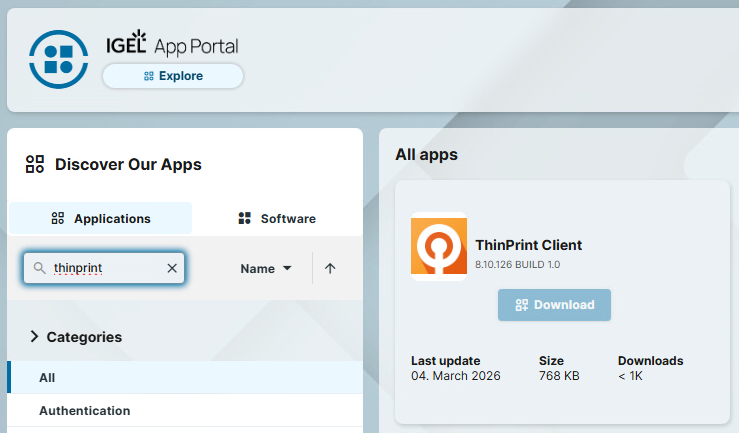
- Import ThinPrint Client in the Apps section of IGEL Universal Management Suite via Import App
- Create a new configuration profile with Printing apps or add it to existing ones and configure the ThinPrint Client settings according to your needs
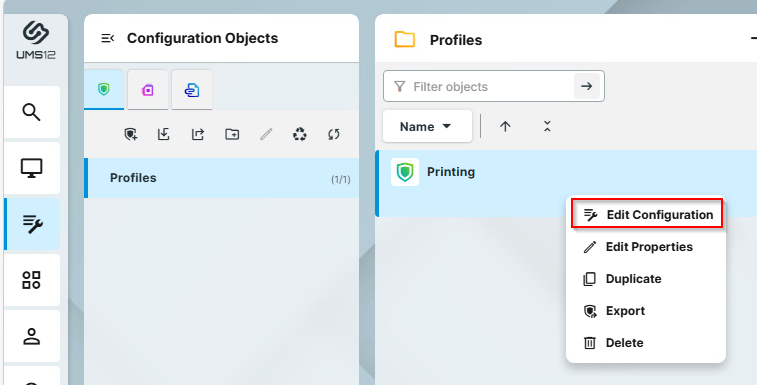
- Deploy the configuration to IGEL OS 12 clients
| Note: ThinPrint Client requires IGEL OS Base System >012.1.120-0 and cups_printing >=1.0.0 |
Local installation
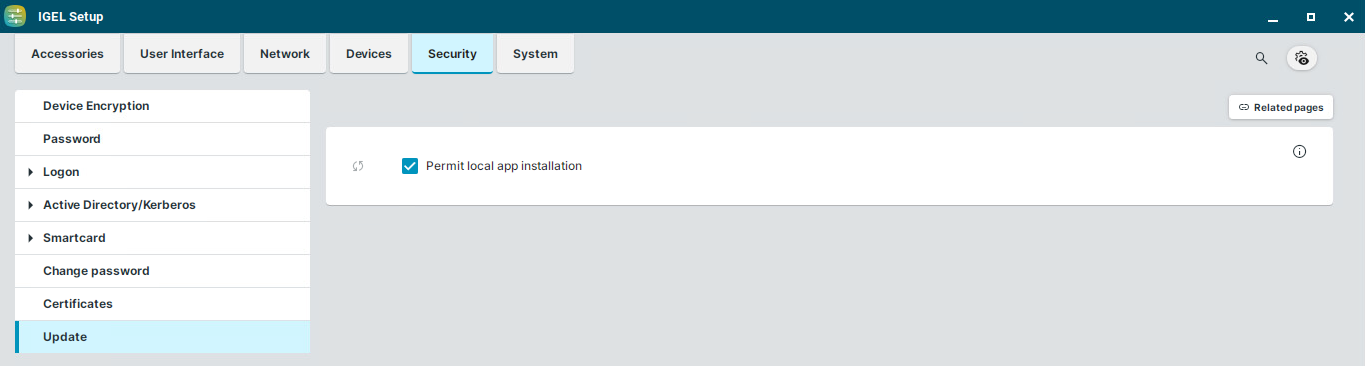
The local installation of ThinPrint Client IGEL OS 12 requires permission to install applications locally. To permit the local app installation navigate in the IGEL Setup to Security -> Update and check the Permit local app installation checkbox.
- To install ThinPrint Client locally open the IGEL App Portal on the IGEL OS 12 device.

- Search for the ThinPrint Client and click on Install
- ThinPrint Client and dependant apps then get dowloaded and installed.
- Restart the device to complete the app installation.
- After the restart configure the ThinPrint Client according to your needs.
After installing the ThinPrint Client package the ThinPrint Client settings are available in the Apps tab by expanding the ThinPrint Client menu.